
Monitor calibration is an important process that helps ensure that colors and grayscale are displayed correctly on your monitor. Incorrect color settings can cause images to display incorrectly, which is particularly critical for graphic designers, photographers, and video editors.
If you have a Windows or Apple computer, you can easily calibrate your monitor yourself. Below I'll provide step-by-step instructions for both operating systems.
Monitor calibration on Windows:
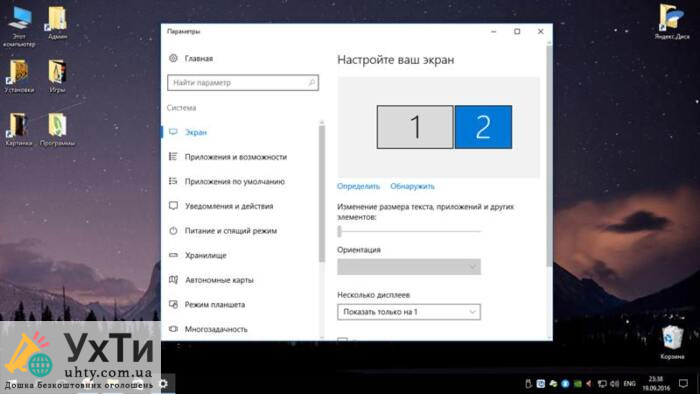

- Open Windows Settings. You can do this by pressing the Win + I key combination or by clicking on Settings in the Start menu.
- In the “Settings” window, select “System”.
- Click on “Display” in the left sidebar.
- Scroll down and click on “Advanced display settings”.
- In the “Advanced display settings” window, scroll down and click on “Color calibration”.
- The Color Calibration Wizard will appear. Click “Next” to proceed through the steps.
- Adjust brightness and contrast as the wizard guides you. Next, you'll measure white, adjust gamma, and then adjust gray balance using special tools.
- Once the wizard is complete, you will be prompted to save your calibration settings and will also see a comparison between your previous and new settings. If you are satisfied with the results, save the new settings.
Monitor calibration on MacOS:
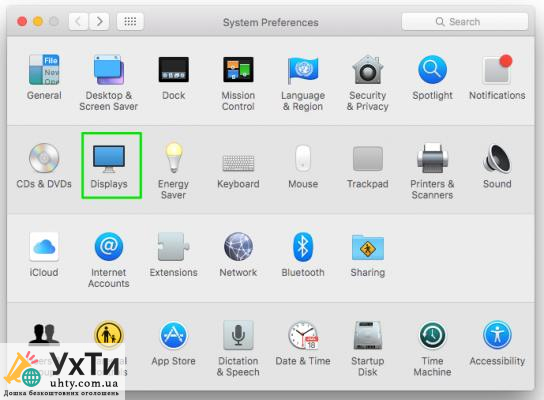
- Open “System Preferences” on your Mac. You can find it in the taskbar or in the “Apple” menu in the upper-left corner of the screen.
- Select “Displays” or “Monitors” depending on your version of MacOS.
- Go to the “Color” tab.
- At the bottom, select “Calibrate…” to launch the monitor calibration wizard.
- Click “Continue” and follow the wizard instructions to adjust brightness, contrast, gamma, and white balance.
- Save the new calibration settings when you are finished.
After calibrating, it's important to save the new settings so that all changes are applied each time you start your computer. You may also want to repeat the calibration process if you get new monitors or if your work environment changes. Monitor calibration will help provide more accurate and realistic color reproduction, which, in turn, will improve your work with graphics and media content.

